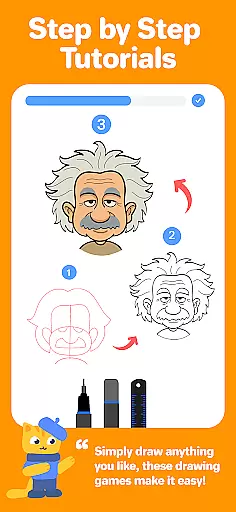
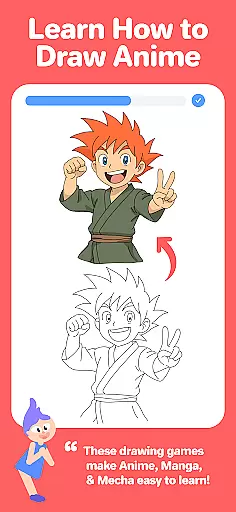
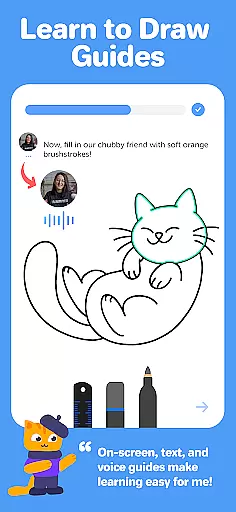
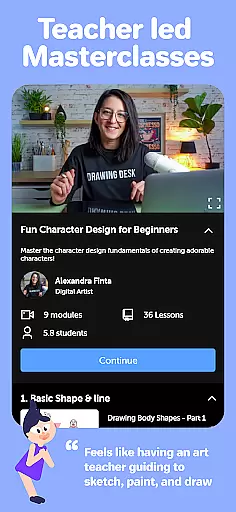
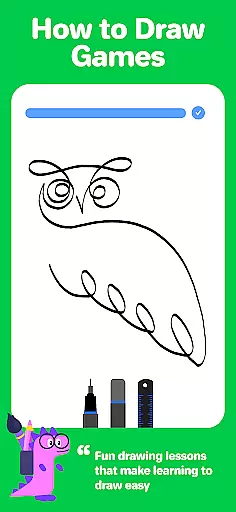
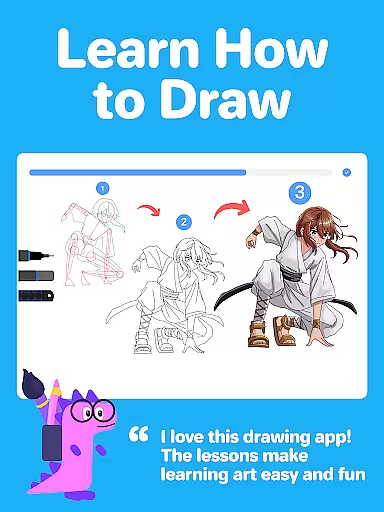
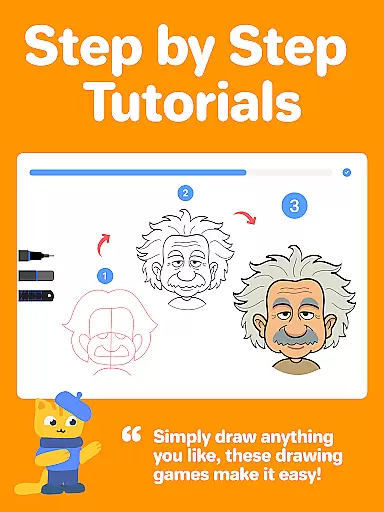
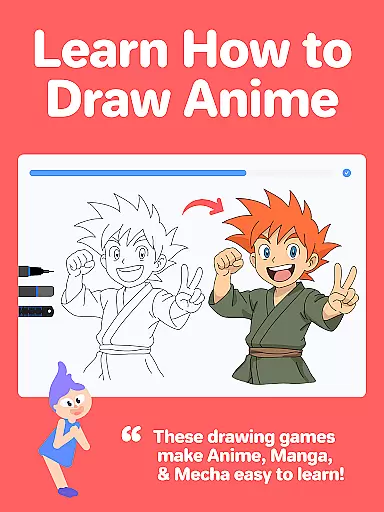
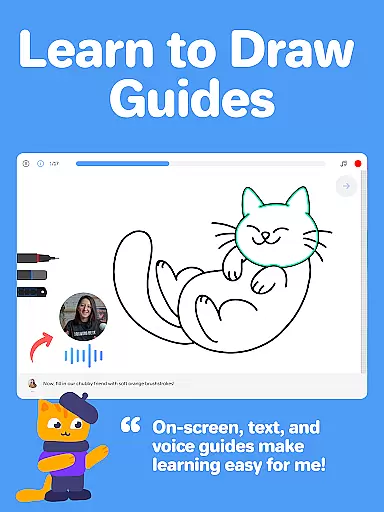
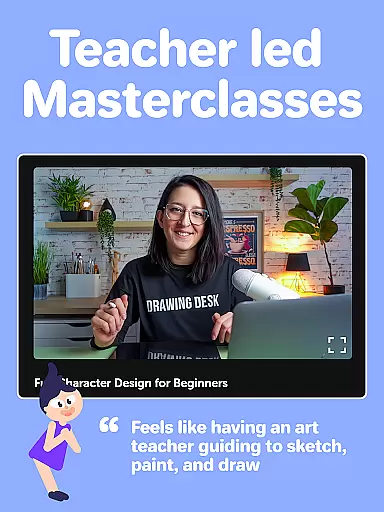
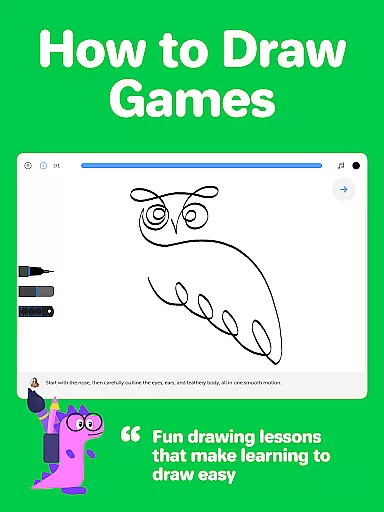
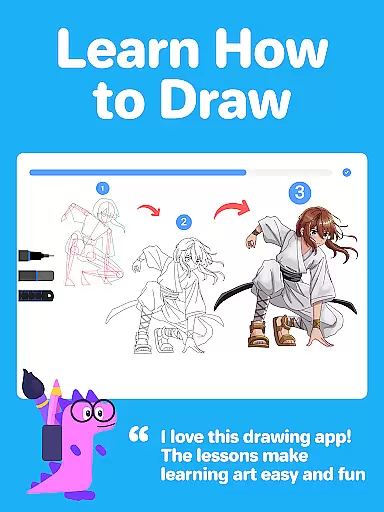
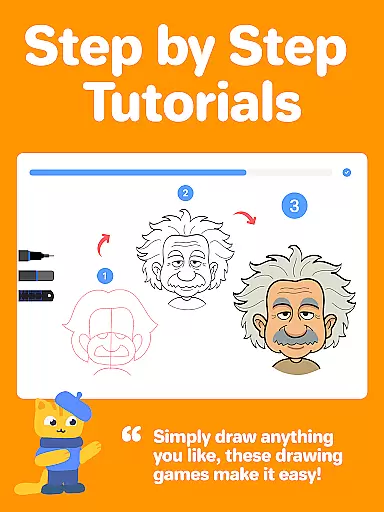
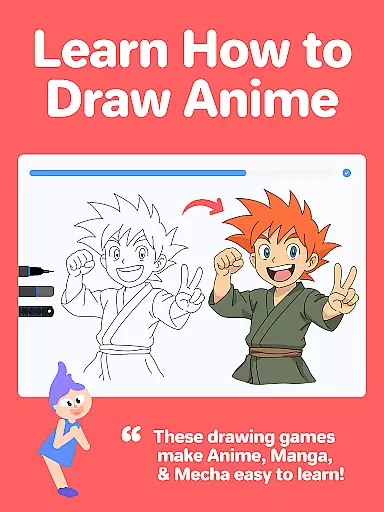
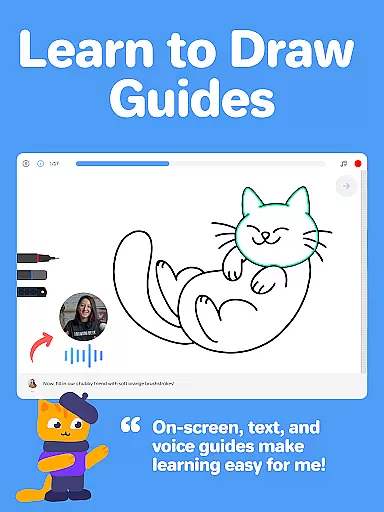
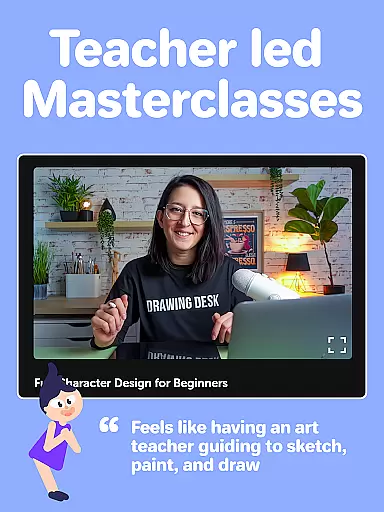

Drawing Desk is a premier digital art application designed for both beginners and advanced artists. With over 70 million users globally, this app offers an extensive suite of drawing and painting tools including pencils, crayons, watercolor brushes, and more. It provides a platform to learn and practice art skills through interactive lessons and masterclasses conducted by professional artists.
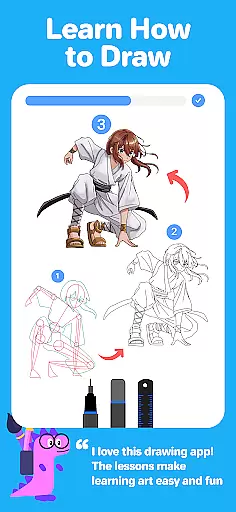
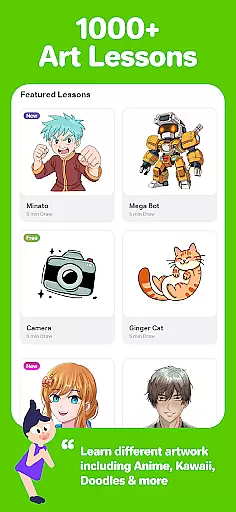
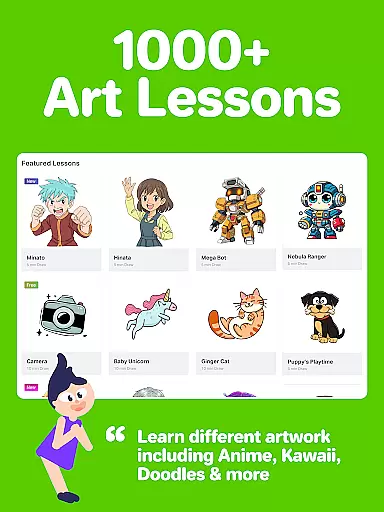
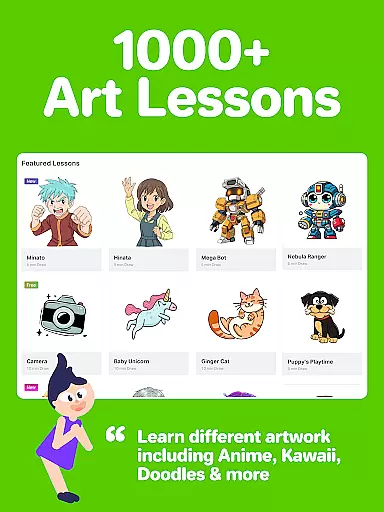
The app features over 1000 step-by-step drawing lessons covering various styles such as Anime, Manga, Kawaii, and Art Therapy. Users can select specific artistic goals and follow structured learning paths tailored to their needs. Additionally, Drawing Desk includes AI-powered tools like Sketch to Art AI and Auto Colorize, enhancing the creative process with technology.
Whether you're looking to refine your skills or start from scratch, Drawing Desk caters to all levels of expertise. Its comprehensive toolset and guided lessons make it ideal for anyone interested in digital art, ensuring a productive and enjoyable artistic journey.
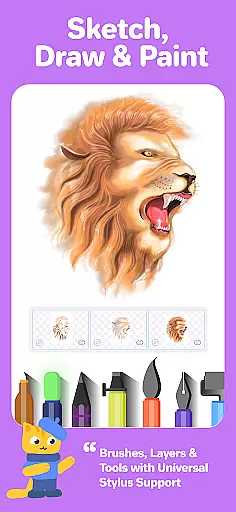
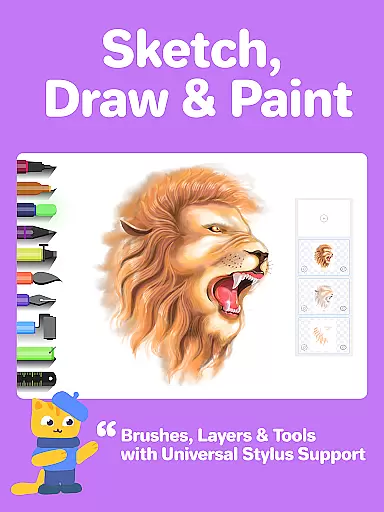
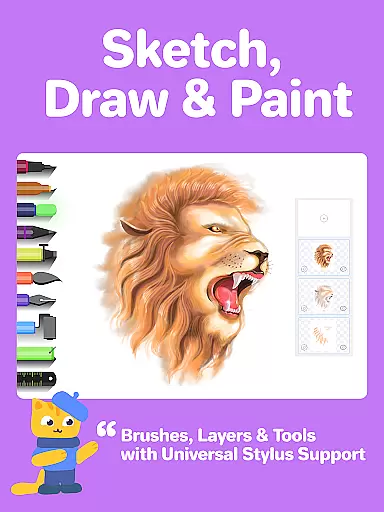
Drawing Desk stands out with its rich feature set tailored for digital artists. The app includes 25+ sketch tools such as pens, pencils, crayons, neon markers, watercolor brushes, and smudge tools. These instruments allow users to create detailed and vibrant artworks on various canvas sizes, particularly beneficial for tablet users.
One of the key highlights is the unlimited layers feature, enabling complex artwork creation without constraints. The symmetry tool and instant shapes library with 200+ options further enhance creativity. Additionally, the app offers color palettes, gradients, and a fill bucket tool with 125+ textures, providing everything needed for professional-grade illustrations.
Beyond traditional tools, Drawing Desk incorporates AI-powered functionalities. Users can leverage Sketch to Art AI, Text to Art AI, and Auto Colorize features to transform sketches into artworks swiftly. The AI tools also assist in removing backgrounds and unwanted objects from images, streamlining the editing process and allowing artists to focus on their creative vision.
In the realm of digital art, having a comprehensive set of creative tools is essential for artists to fully express their visions. Drawing Desk rises to the occasion by offering an extensive suite of over 25 sketch tools that cater to various artistic needs. These include traditional options like pen, pencil, and crayon, as well as more specialized choices such as neon, watercolor brush, ink, smudge, eraser, and fill bucket.
Moreover, the app provides unique features that enhance the drawing experience. Users can draw quick shapes, utilize a symmetry tool for balanced creations, and choose from more than 200 instant shapes to incorporate into their artwork. The availability of unlimited layers allows for complex compositions and easy editing, giving artists unparalleled flexibility in their work.
Drawing Desk also supports different canvas sizes, catering especially to users on tablets who require larger working spaces. With color palettes, gradients, and over 125 textures available through the fill bucket tool, artists have everything they need to create richly detailed and vibrant pieces. This complete toolkit empowers both amateur and professional artists to explore new techniques and styles within the digital medium.
The ability to adapt the canvas and format to suit individual projects is a hallmark of any robust art application. Drawing Desk excels in this area by providing users with the option to draw and paint across various canvas sizes, particularly beneficial for those using the app on a tablet. This adaptability ensures that whether you're sketching a quick doodle or crafting a detailed masterpiece, the workspace can be tailored to your specific requirements.
Beyond just canvas size, Drawing Desk offers advanced functionalities that contribute to its flexible formatting. Artists can take advantage of unlimited layers, allowing them to build intricate designs without constraint. The inclusion of features like the symmetry tool adds another layer of versatility, enabling precise and harmonious compositions that might otherwise be difficult to achieve.
Furthermore, Drawing Desk's support for diverse artistic mediumsu2014from pencils to watercolorsu2014ensures that no matter what format an artist prefers, they will find the necessary tools at their disposal. By combining these elements, Drawing Desk creates an environment where creativity knows no bounds, empowering users to experiment freely and bring their ideas to life without being limited by technical constraints.
User-friendly interface
Extensive drawing tools
Interactive learning modules
AI-powered enhancements
Vast lesson library
Some features may require payment
Advanced tools have a learning curve
Occasional performance lags
Limited offline functionality
Subscription model
Meet the magic aı 3d photo generator and smart AI video generator app.
 3.20
3.20
AI Face Swap, Video Effects Editor, Realtime Morph, Funny Video FX,AI Filters
3.70
See Color, Paint Color
4.90
AI Art Generator transforms your words into AI generated art & paintings.
3.70
Photo editor for art, avatars, filters & fun transformations.
4.60
Your AI soulmate — meaningful chats, and unique emotional moments
4.70
Inky runs Inkscape on Android devices and Chromebooks
2.90
Retouch photos. Create or edit images. Endless capabilities.
2.70
Multiplayer Drawing game, Coloring, Painting・Sketch, Handwriting・Paint, draw
4.30
2D animation studio for Android tablets - unlimited layers, infinite timeline
4.70
Create neon drawing with magic doodle and fun doodle art effects!
4.50
Photo blender app to create overlay photos & double exposure.
4.40
Digital Drawing: Draw & Paint
4.10
Easy 3D drawing design maker & creator. Model designing, Sculpting. Create&paint
4.00
Get creative and make art with your Sesame Friends!
4.00
Sketch and paint on your device with the feel and freedom of drawing on paper
4.00
AI Assistant, powered by ChatGPT GPT-4 & GPT-4o. Your intelligent companion.
3.50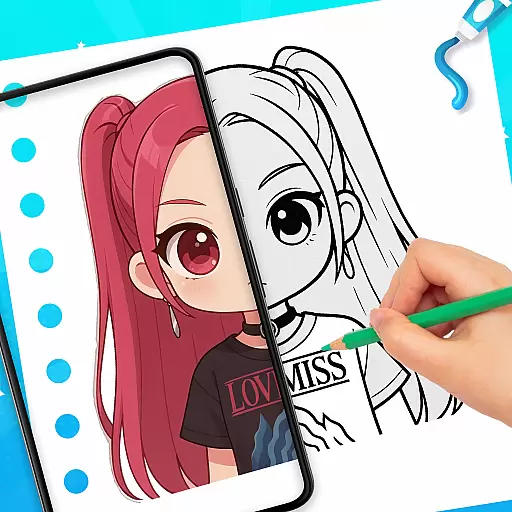
Sketch, trace and master AR drawing with awesome anime art!
3.30
Premium version of Shimeji-ee app with no ads & no limit active shimeji
4.1


User Reviews